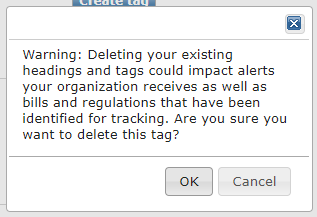
In this help article we will provide you with instructions on how to delete existing tags or update existing tags. All of this work will be done via our tag tool in the file manager. Editing or deleting tags will apply the action to all bills in your tracking file that have the tags assigned to them so please pay special attention to the caution messages in step 5 below.
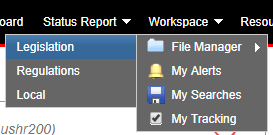
1. In the Navigation bar at the top of the page start by choosing the Workspace drop down.
2. Mouse over File Manager and choose Legislation:
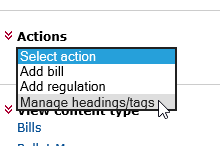
3. On the left side of the page choose "Actions" drop down and choose "Manage Headings/Tags".
4. Highlight the Heading your are going to work on and from there you can choose to edit or delete the specific tag under that heading:
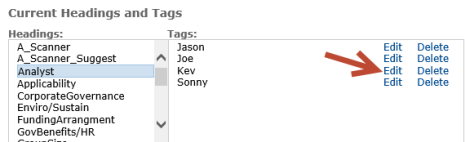
5. Deleting a tag (5.a) and editing a tag (5.b).
5.a - Delete - deleting a tag will result in removing the tag from every bill it is currently assigned to in your Private File. You will receive a Warning message stating this, allowing you to click OK or Cancel. If you click "OK" the tag will be deleted and removed from all bills.
5.b - Edit - Editing a tag will result in that tag getting changed on all bills it is assigned to in your tracking file. You will get a warning message before proceeding.
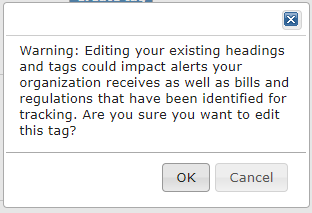
5.b.1 - Upon clicking OK to edit, the heading and tag will appear in boxes where they can be edited

5.b.2 - Writing over TagZ to edit it to TagXYZ and applying Modify Tag will result in updating every bill currently assigned to TagZ to now be assigned to TagXYZ
We are always willing to help with items like this so please do not hesitate to reach out to your State Net Solutions Consultant or send email to support@statenet.lexisnexis.com for help or to task us to do this for you.
Comments
0 comments
Article is closed for comments.