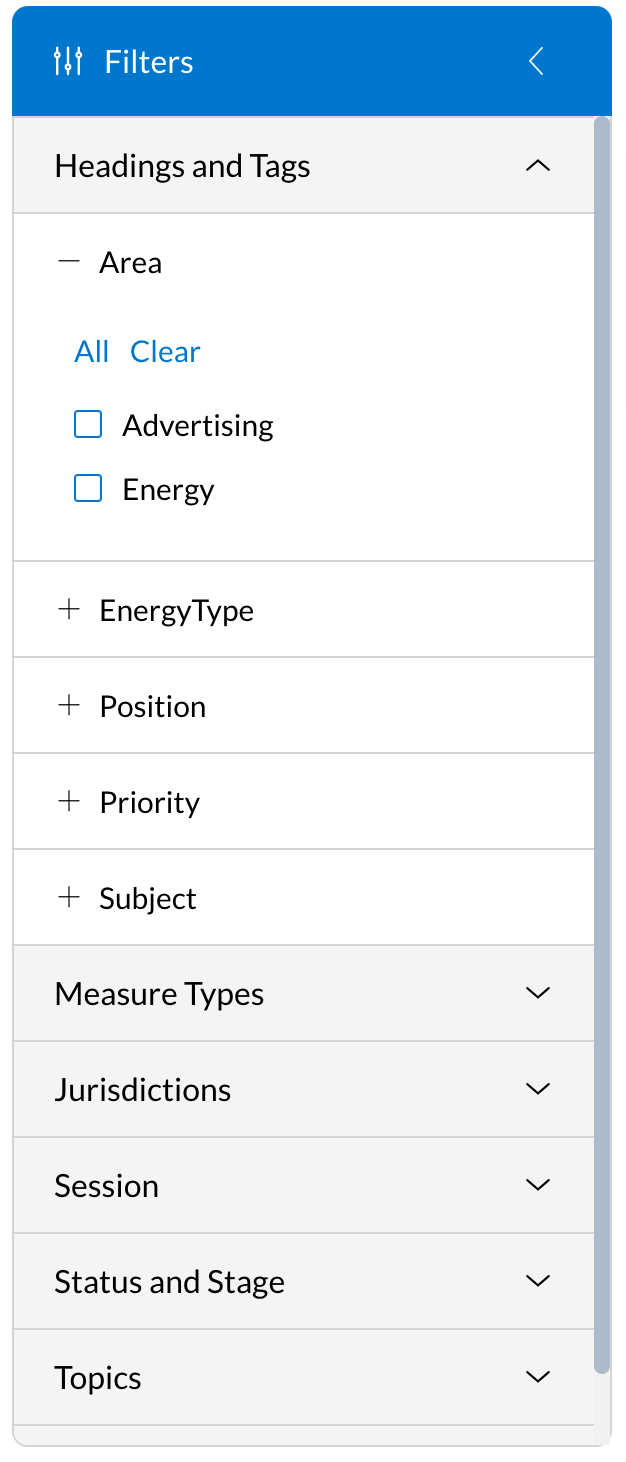
From the Tracking Console, filter by Private File or Tags in the left hand filter menu.
You can also isolate your tracked measures to those that have had new activity since a particular date:
- Open the "New Activity Since" filter dropdown
- Enter a start date and end date (optional) to search within a specific time frame
- Select a measure or tracking activity option to run the date against (see options below)
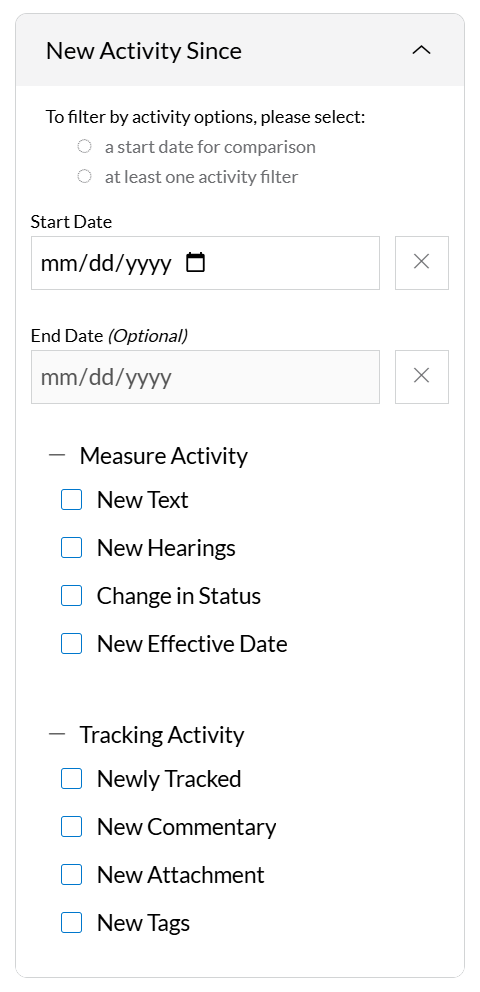 |
Measure Activity: Activity related directly to measure changes
- New Text: Select this to display a new version of text or partial amendment since the date you entered
- New Hearings: Select this to display new hearings that have been scheduled since the date you entered
- Change in Status: Select this to display information of new status changes since the date you entered
- New Effective Date: Select this to display new effective dates since the date you entered
Tracking Activity: Activity related to tracking actions
- Newly Tracked: Select this to display measures that were newly tracked since the date you entered
- New Commentary: Select this to display measures with new commentary since the date you entered
- New Attachment: Select this to display measures with new attachments since the date you entered
- New Tags: Select this to display measures with new tags since the date you entered
|
Read About Other Filters Here
Related Articles:
Comments
0 comments
Please sign in to leave a comment.